You want to watch your favorite shows, but the screen stays black. This IPTV problem often happens at the worst moment. But, it is easy to resolve with the right troubleshooting steps.
Many Samsung TV owners encounter compatibility or network issues. Adjusting your settings can help restore good viewing quality. Sometimes, a simple update is enough to resolve the problem.
IPTV Smarters Pro Samsung not working
Our guide shows you how to reconfigure your access on IPTV Smarters Pro. You will learn how to stabilize your video stream and avoid interruptions. Follow these tips to get the most out of your high-definition television.
Key Takeaways
- Check the stability of your home internet connection first.
- Regularly update the firmware of your smart television.
- Reinstall the application to remove temporary files that are blocking access.
- Verify the accuracy of your login credentials provided by your service.
- Modify the DNS settings to optimize channel loading speed.
- Electrically restart your equipment to clear the internal cache memory.
1. Understanding how IPTV Smarters Pro works on Samsung televisions
Using a Samsung television with IPTV Smarters Pro requires understanding how it works. This application allows you to watch multimedia content on multiple devices. However, Samsung televisions have specific challenges related to their operating system and technical limitations
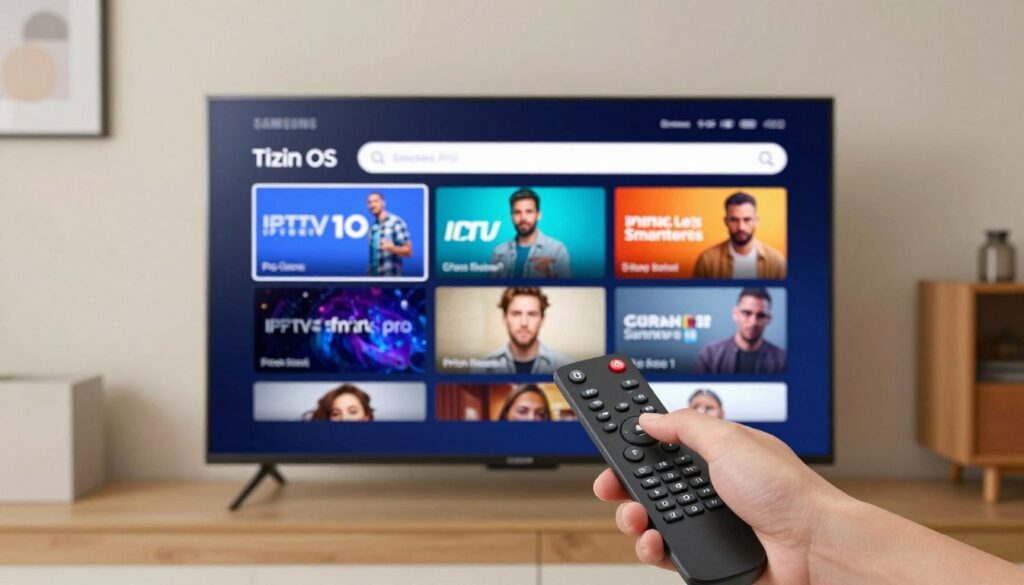
Tizen OS
The limitations of the Tizen operating system
Samsung televisions use Tizen OS, a system designed for smart devices. Tizen OS is easy to use but limits the available applications. IPTV Smarters Pro is not directly compatible with Tizen OS, which makes its use difficult on Samsung televisions.
The restrictions of Tizen OS include strict application control on Samsung Smart Hub. Only certain applications are allowed, especially those requiring special permissions.
Why IPTV Smarters Pro is not available on Samsung Smart Hub
IPTV Smarters Pro is not on Samsung Smart Hub due to Samsung's application validation policy. Applications must meet security and quality standards. IPTV Smarters Pro may not meet these criteria.
IPTV service providers must also follow the requirements of television manufacturers. This can delay or prevent the installation of certain applications on Samsung Smart Hub.
The differences between recent and older Samsung models
Recent and older Samsung models have significant differences. The newer ones have more recent versions of Tizen OS, offering better performance and security. However, these versions may also limit application compatibility.
Older models have earlier versions of Tizen OS. This can limit their ability to use recent features or applications. Knowing which Samsung television model you have is crucial for using IPTV Smarters Pro.
2. The main reasons why IPTV Smarters Pro is not working on Samsung
If IPTV Smarters Pro is not working on your Samsung, you need to find the cause. Technical problems and configuration errors are often at the root of the issue.
Native incompatibility with Tizen OS
Samsung televisions use Tizen OS, which is not compatible with all Android applications. IPTV Smarters Pro, designed for Android, may experience issues on Tizen OS.
The reasons for this incompatibility include:
- Differences in software architectures
- Restrictions imposed by Samsung on permitted applications
- Limitations in the integration of Android services on Tizen
Home network configuration issues
A poor network configuration can prevent IPTV Smarters Pro from working. Common issues include:
- A low Internet connection speed
- An incorrect router configuration
- DNS issues
Make sure your network is stable and properly configured for a good IPTV experience.
Errors in IPTV login credentials
Incorrect login information is a frequent cause of IPTV Smarters Pro malfunction. Make sure your credentials are correct and valid.
Here are some tips to avoid login errors:
- Check the credentials provided by your IPTV provider
- Make sure the username and password are entered correctly
- Contactez votre fournisseur IPTV en cas de doute
Geographic restrictions and provider limitations
Some IPTV providers impose geographic restrictions or have limitations on permitted devices. These restrictions can prevent IPTV Smarters Pro from working on your Samsung television.
It is crucial to understand these limitations and to contact your provider to obtain information about the restrictions applicable to your subscription.
3. Checking the essential prerequisites before getting started
Before resolving the IPTV problem with Smarters Pro on your Samsung television, check a few key elements. This will help you identify and potentially resolve compatibility or configuration issues.
Test Your Internet Connection Speed
A stable and fast Internet connection is crucial for a smooth IPTV experience. To check whether your connection meets the requirements, you need to test your Internet connection speed.
Minimum recommended speed for IPTV
The minimum recommended speed for a smooth IPTV experience is generally 5 Mbps for SD quality and 25 Mbps for HD quality. However, this may vary depending on your IPTV service provider.
Using an online speed test
You can use online tools such as Speedtest.net to check your connection speed. Make sure to close all other applications that use bandwidth to get accurate results.
Validating your IPTV subscription information
It is crucial to validate your IPTV subscription information to make sure you are using the correct credentials. Check with your IPTV provider if you are unsure about your login information.
- Check your IPTV email address and password.
- Make sure your subscription is active and has not expired.
- Contact your IPTV provider if in doubt.
Identifying the exact model of your Samsung television
Knowing the exact model of your Samsung television is essential for resolving compatibility issues. You can find this information in the Settings menu of your television, under Product Information or About This TV.
By checking these prerequisites, you can eliminate the common causes of issues with IPTV Smarters Pro on your Samsung television.
4. Installing IPTV Smarters Pro on Samsung via Android TV Box
Using an Android TV box is a good idea to bypass the limitations of Tizen OS. This allows you to use IPTV Smarters Pro without the issues related to your television's operating system.
Choosing a compatible Android TV box
Choosing the right Android TV box is important for a good experience. There are several options available on the market.
Recommended options: Nvidia Shield, Xiaomi Mi Box, Chromecast with Google TV
Here are some recommended options:
- Nvidia Shield: very powerful and compatible with many applications.
- Xiaomi Mi Box: affordable and high-performing.
- Chromecast with Google TV: an integrated option for enhanced streaming.
Each of these options ensures a top user experience and is compatible with IPTV Smarters Pro.
Connecting the box to your Samsung television
After choosing your Android TV box, you need to connect it to your Samsung television.
HDMI connection and initial setup
To connect it :
- Use an HDMI cable to connect it to your television.
- Turn on the box and follow the instructions for setup.
Selecting the correct input source
Make sure to select the correct input source on your television. This will display the content from the Android TV box.
Downloading and installing IPTV Smarters Pro
After setting up the Android TV box, install IPTV Smarters Pro.
Installation from the Google Play Store
To install it :
- Open the Google Play Store on the Android TV box.
- Search for IPTV Smarters Pro and click on "Install."
Configuring the application settings
After installation, configure the application according to your preferences.
Entering your IPTV credentials
Finally, enter your IPTV credentials to access your favorite channels.
By following these steps, you will be able to enjoy IPTV Smarters Pro on your Samsung television via an Android TV box.
5. Using Amazon Fire TV Stick as an alternative solution
The Amazon Fire TV Stick is a versatile device. It allows you to use IPTV Smarters Pro on your Samsung television. This avoids compatibility issues with the Tizen system of Samsung televisions.
Preparing your Fire TV Stick for installation
Before downloading IPTV Smarters Pro, make sure your Fire TV Stick is ready.
Enabling unknown sources in the settings
To install IPTV Smarters Pro, you need to enable the installation of applications from unknown sources.
- Go to the settings of your Fire TV Stick.
- Select "My Fire TV" or "Device" depending on your version.
- Choose "Developer Options."
- Enable "Apps from Unknown Sources."
Installing Downloader or FileLinked
To download and install IPTV Smarters Pro, you will need a file management application.
Choose between Downloader or FileLinked. Both are available on the Amazon Appstore.
Downloading IPTV Smarters Pro on Fire Stick
Getting the official APK file
To install IPTV Smarters Pro, obtain the official APK file from a reliable source.
Download the APK file from the official IPTV Smarters Pro website to avoid security risks.
Step-by-step installation process
- Open the Downloader or FileLinked application on your Fire TV Stick.
- Enter the URL of the IPTV Smarters Pro APK file.
- Allow the application to download the file.
- Once the download is complete, click on "Install."
- Follow the on-screen instructions to complete the installation.
Configuring IPTV Smarters Pro on Fire Stick
After installation, open IPTV Smarters Pro. Configure it with your IPTV login credentials.
| Step | Description |
| 1 | Open IPTV Smarters Pro on your Fire TV Stick. |
| 2 | Enter your IPTV login information. |
| 3 | Select your preferred playlist or channel. |
| 4 | Enjoy your favorite IPTV content. |
By following these steps, you can use IPTV Smarters Pro on your Samsung television via Amazon Fire TV Stick.
6. Resolving common playback and performance issues
Playback issues and performance problems with IPTV Smarters Pro can be resolved easily. It is important to understand the causes of the problems. This will help you resolve them.
Eliminating buffering and picture freezing issues
Buffering and picture freezing issues are frustrating. Here is how to resolve them:
Switch to a wired Ethernet connection
Wi-Fi connections can be unstable. Switching to a wired Ethernet connection improves the stability and speed of your connection.
Close background applications
Background applications can cause issues. Close all unnecessary applications to free up resources.
Adjust the cache settings in IPTV Smarters Pro
Adjusting the cache settings in IPTV Smarters Pro can help. Try increasing the cache size or resetting it.
Fixing connection and authentication errors
Connection errors and authentication issues prevent access to your IPTV streams. Here is how to fix them:
Check the server URL and activation codes
Make sure the server URL and activation codes are correct. A typing error can cause issues.
Reset your IPTV subscription
If problems persist, resetting your IPTV subscription can help.
Resolving video quality issues
Poor video quality can have several causes. Here are some solutions:
Adjust the playback resolution
Try to adjust the playback resolution in IPTV Smarters Pro. This can improve the video quality.
Modify the video decoder in the settings
Changing the video decoder can also help. Experiment to find the best decoder.
| Problem | Solution |
| Buffering and picture freezing | Ethernet connection, close background applications, adjust cache settings |
| Connection errors and authentication issues | Check the server URL and activation codes, reset the IPTV subscription |
| Video quality issues | Adjust the playback resolution, modify the video decoder |
7. Exploring native alternatives for Samsung
Discover native alternatives to IPTV Smarters Pro for Samsung televisions. If you are looking for integrated solutions compatible with your device, this section is for you.
Smart IPTV for Samsung televisions
Smart IPTV is a popular application for Samsung televisions. It offers a smooth experience with the Tizen system.
Installation from Samsung Apps
To install Smart IPTV, access Samsung Apps on your television. Search for the application and follow the installation instructions.
Activation and configuration
After installation, open the application. Enter your IPTV login credentials. Configure the settings according to your preferences. "Activating Smart IPTV is simple and quick," say users.
SS IPTV as a free solution
SS IPTV is a free alternative for Samsung televisions. It has a simple interface and basic features for playing IPTV streams.
Using Samsung's built-in web browser
The Samsung built-in web browser allows you to access your IPTV service. Simply navigate to your IPTV provider's website and log in.
IPTV applications compatible with Tizen OS
Il existe plusieurs applications IPTV compatibles avec Tizen OS à explorer. Ces applications offrent diverses fonctionnalités et peuvent mieux répondre à vos besoins spécifiques.
« Native IPTV applications offer an improved user experience and better stability. »
8. Conclusion
You now have a clear idea of the solutions for IPTV Smarters Pro issues on your Samsung. The different methods help you choose the best one for you.
Whether you choose an Android TV box or an Amazon Fire TV Stick. Or if you want to try Samsung-specific alternatives. You can enjoy a smooth IPTV experience on your television.
In summary, IPTV Smarters Pro works well on Samsung televisions with the right tools. Explore the different options to find the one that suits you best.
FAQ
Why is the IPTV Smarters Pro application not found on Samsung Smart Hub?
The application is not available on Samsung televisions. This is due to the Tizen OS operating system. This system does not support Android APK files. To use IPTV Smarters Pro, you must use an external box.
What are the best hardware solutions for using IPTV Smarters Pro on a Samsung television?
To bypass the limitations of Tizen, connect an Android TV box or a media gateway. The best options are the Nvidia Shield TV, the Xiaomi Mi Box S, or Chromecast with Google TV. These devices give you access to the Google Play Store to install the application
How do I install the application on an Amazon Fire TV Stick?
On your Amazon Fire TV Stick, enable applications from unknown sources in the developer settings. Use the Downloader application to download the official IPTV Smarters Pro APK file. After installation, configure your access easily.
Are there native Samsung applications that can replace IPTV Smarters Pro?
Yes, applications such as Smart IPTV, SS IPTV, or Nanomid are available on the Samsung store. They allow you to play your streams using your MAC address and an M3U file or an Xtream Codes API.
How can I stop buffering and picture freezing issues?
Buffering is often caused by a low Internet speed. For better 4K quality, use an Ethernet connection. You can also adjust the network cache or change the video decoder for smoother playback.
What should I do if my login credentials are refused?
First check that your URL, username and password are correct. An error can block authentication. If the problem persists, try your credentials on another device to verify that your access is not blocked.
Is it possible to use my Samsung TV's web browser to watch IPTV?
Samsung's built-in browser can access certain web players. However, the experience is often unstable and slow. For better quality, use a dedicated application or a device such as the Fire TV Stick.
👉 Get my IPTV subscription today
Ready to take it to the next level?
Enjoy 15,000+ channels in 4K Ultra HD with our premium service.
View Best Plans