
TiviMate is the smoothest IPTV player for Fire TV and Android TV, and the one our support team recommends first for 4K in Canada. Its cable-style channel guide, instant zapping and favourite groups turn any TV into a clean, fast streaming box — once it is set up correctly.
This guide covers the four things people ask us about most: installing TiviMate, adding your playlist, fixing the EPG guide and organising favourites. Every step is written for a Fire TV Stick or an Android TV / Google TV box.
What you need before starting
Fire TV or Android TV
Fire TV Stick (Lite, HD, 4K, 4K Max) or any Android TV / Google TV box or television.
25 Mbps+ connection
Stable speed recommended for 4K UHD without buffering — 5 GHz Wi-Fi or Ethernet.
Your Xtream login
Server URL, username and password, plus the EPG URL, provided with your subscription.
1. Install TiviMate on Fire TV (side-load with Downloader)
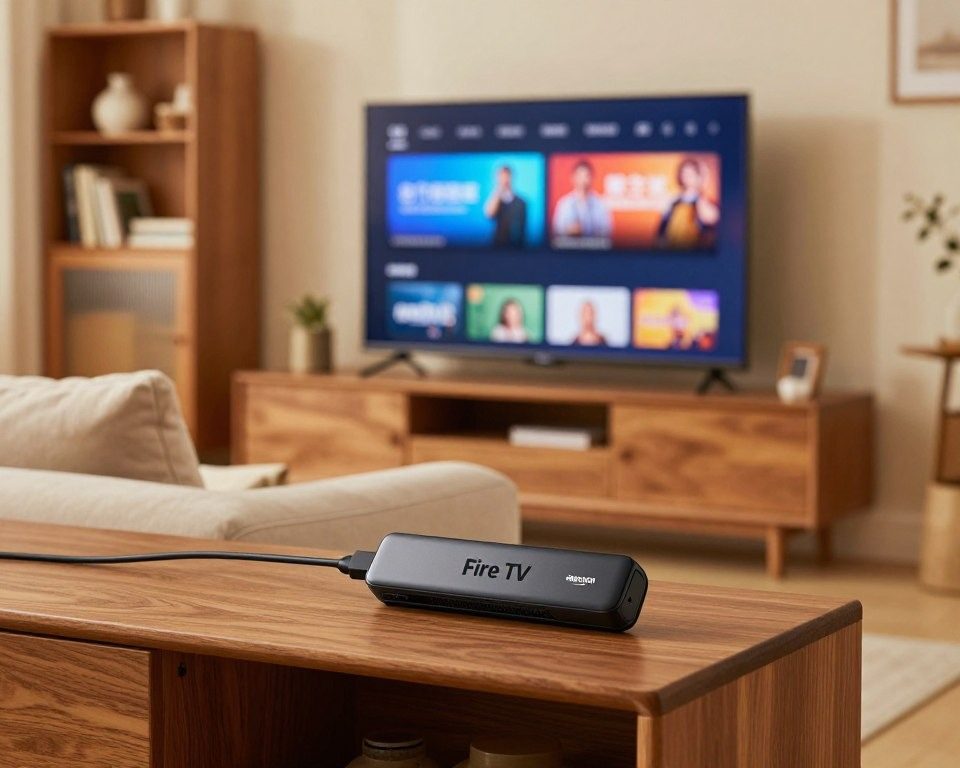
TiviMate is on the Google Play Store for Android TV boxes, but not in the Amazon Appstore, so on a Fire TV Stick you install it with the free Downloader app.
Allow unknown apps
On Fire TV, go to Settings › My Fire TV › Developer options and turn on 'Install unknown apps' for Downloader. On newer Fire OS, search 'Downloader' first, then the toggle appears.
Install Downloader
From the Fire TV search, install the orange Downloader app by AFTVnews and open it.
Enter the TiviMate code
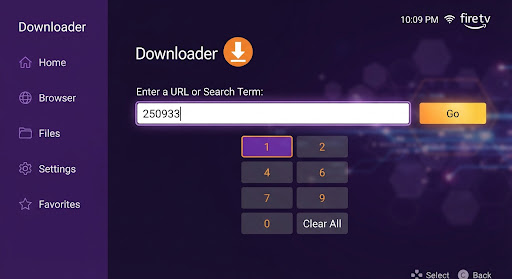
In the Downloader URL box, type the official TiviMate link (tivimate.com) or the app's package, then Go. Accept the download and choose Install.
Open TiviMate
Launch it from your apps row. On Android TV / Google TV, skip all this: just search 'TiviMate' in Google Play and install it directly.
On an Android TV or Google TV box the whole side-loading step disappears — TiviMate installs from Google Play like any normal app.
Only download the developer’s official file (Downloader code 272483, which leads to files.tivimate.com): “TiviMate Premium unlocked” versions found on third-party sites are no longer signed by the developer, and they are the ones receiving your login details. See the risks of modified IPTV apps.
Can you install V12Mate and then TiviMate?
Yes. V12Mate and TiviMate are two independent apps: installing one neither blocks nor replaces the other, and both can sit on the same Fire TV Stick. Install TiviMate with Downloader as above, then log in with your Xtream Codes — TiviMate does not need V12Mate at all. If V12Mate is stuck on a setup screen with only a “Cancel” button, TiviMate is the simplest way out: see V12Mate stuck on the Cancel button. On older 8 GB Fire TV Sticks, uninstall the player you no longer use to free up space.
2. Add your playlist (Xtream Codes login)
TiviMate reads your channels from a playlist. The cleanest method is the Xtream Codes login, because it also pulls in the on-demand sections and keeps the guide in sync.
Add a playlist
On the TiviMate welcome screen choose 'Add playlist', then 'Enter URL'.
Pick Xtream Codes
Select the 'Xtream Codes' login type (not M3U). This gives you Live TV, Movies and Series in separate tabs.
Type your credentials
Enter the Server URL, Username and Password from your subscription exactly as sent — no extra spaces.
Name it and finish
Give the playlist a name (e.g. 'IPTV Québec HD') and confirm. TiviMate downloads the channel list in a few seconds.
Quick access codes 2026
Open Downloader and type one of the following short codes in the address bar.
If you do not have your login yet, you can start a subscription or take the 24-hour trial for $2.99 and your Xtream credentials arrive by email.
TiviMate server address: what to enter
The server address — Server address or Server URL on TiviMate’s Xtream Codes screen — is the address of your provider’s server, not a web page. It looks like this:
http://server-name:port- Copy it from your client area: Subscriptions, then your order, shows the server address, username and password (see the portal guide). It is also in the email sent after your order.
- Keep
http://exactly as given. Changing it tohttps://or leaving it out is the most common reason the login fails. - Keep the port — the number after the colon, such as
:8080— and add nothing after it: no/get.php, no trailing slash. A long address ending inget.php?username=…is an M3U link: use it with TiviMate’s “M3U playlist” option instead (how to add an M3U playlist to TiviMate). - No spaces before or after, especially when you paste from an email on a phone.
| What you see | Likely cause | Fix |
|---|---|---|
| Login fails straight away | Username or password mistyped, or https:// instead of http:// |
Copy the three fields again from the client area |
| Loading never finishes | Port missing or wrong | Enter the port exactly as given |
| Logged in, but no channels | Subscription expired or too many screens connected | Check the expiry date; close TiviMate on other devices |
3. Fix the EPG guide (empty or shifted programmes)
The EPG is the on-screen TV guide. Two problems are common, and both are quick to fix.
4. Organise Live TV: favourites and channel groups
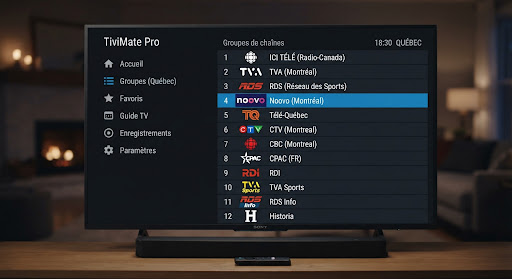
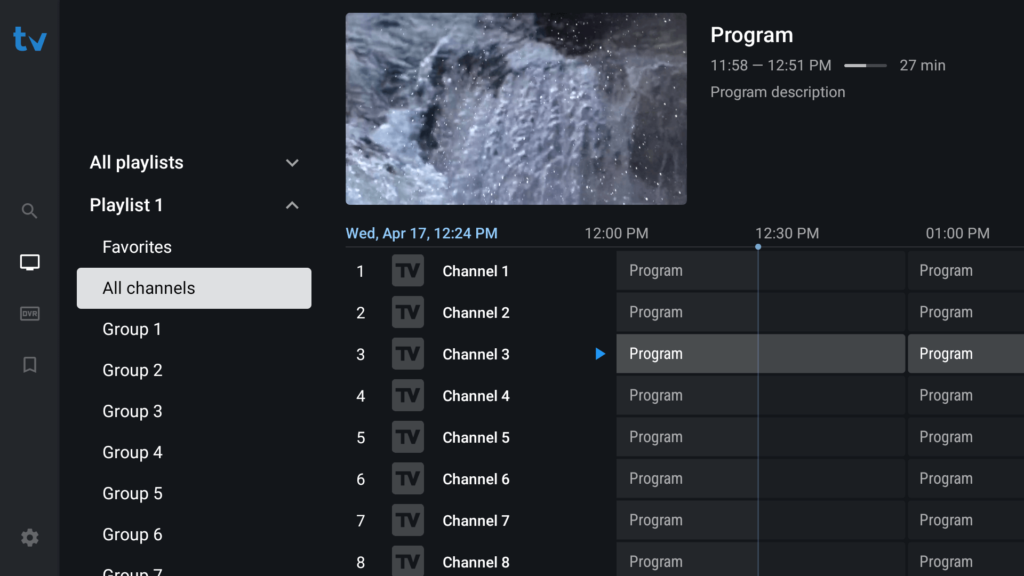
Live channels sit in TiviMate’s TV section (Live TV), next to Movies and Series. Nobody wants to scroll through thousands of them: TiviMate Premium lets you build favourite groups — one for sports, one for news, one for the kids.
Open the channel list
Press the guide/menu button to show the channel list on the left.
Long-press a channel
Hold OK/Select on a channel and choose 'Add to favourites'. Create a group like 'Sports' or 'RDS & TVA' the first time.
Reorder them
In Settings › Playlists › Channel management you can drag channels into the order you want and hide ones you never watch.
Switch groups fast
On the live screen, press left/right on the group bar to jump between Sports, News, Kids and All channels.
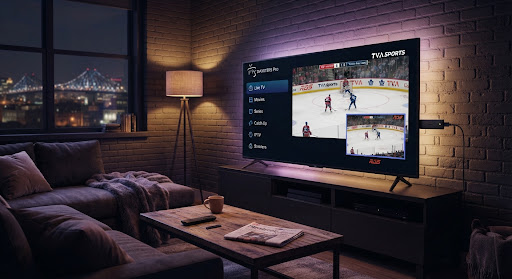
For live hockey and RDS / TVA Sports, a small “Sports” favourite group is the single biggest quality-of-life improvement — see our channel list to know what to add.
City coverage across Canada
Our Montreal and Toronto servers keep TiviMate smooth wherever you are. If you want local details — providers, local channels and speed notes for your area — we have dedicated pages for IPTV in Montreal, IPTV in Toronto, IPTV in Laval and IPTV in Gatineau.
Frequently asked questions
Still stuck? The short answers below cover the questions our team hears most, and you can always contact support for a hand.
To recap: install TiviMate (Downloader on Fire TV, Google Play on Android TV), log in with Xtream Codes, add the EPG URL and set the America/Toronto time zone, then build a Sports favourites group. That is the exact setup we use to get flawless 4K playback in Quebec and across Canada. Ready to try it? See the plans.